


Wireless HDMI lets you send video and audio from a source device to a TV, monitor, or projector without running a long HDMI cable across the room. It is commonly used for home theaters, meeting rooms, classrooms, projectors, gaming setups, and clean wall-mounted TV installations.
But wireless HDMI has one common problem: the advertised range does not always match real-world performance. A wireless HDMI kit may claim 100 ft, 300 ft, or even longer range, but the actual distance can drop quickly when walls, furniture, Wi-Fi routers, metal objects, and other wireless devices get in the way.

If your wireless HDMI keeps disconnecting, lagging, cutting to a black screen, or becoming unstable across rooms or longer distances, the issue is usually related to signal path, wireless interference, transmission bandwidth, or power stability. The following steps can help you troubleshoot the problem and improve real-world wireless HDMI range and connection reliability.
1. Improve Line of Sight Between Transmitter and Receiver
The most direct way to improve wireless HDMI range is to optimize the physical path between the transmitter and receiver.
Wireless HDMI signals are usually more stable when the transmitter and receiver have a clear line of sight. If the transmitter is hidden behind a media cabinet, under a desk, or blocked by a TV, the range can drop noticeably.
To create a clearer signal path, move the transmitter out from behind cabinets, shelves, or enclosed spaces. Avoid hiding the receiver completely behind the TV, and keep both units away from large metal objects. Placing the devices slightly higher on a desk, stand, or open shelf can also help. Even a small rotation of the transmitter or receiver may improve signal direction.
Sometimes, moving a device just a few inches can make the connection more stable. If the signal improves in open space, the issue is likely caused by obstruction rather than product failure.
2. Reduce Walls and Obstacles
Many users ask whether wireless HDMI can work through walls.
The answer is: sometimes, but range and reliability will be reduced.
Wireless HDMI performance through walls depends on wall material, thickness, frequency band, and device power. A single drywall wall may still allow a usable signal, but concrete, brick, metal studs, mirrors, appliances, and reinforced walls can cause major signal loss.
If your wireless HDMI setup needs to work across rooms, try to reduce the number of barriers between the transmitter and receiver. Passing through one wall is usually easier than passing through two or three. Concrete walls, brick walls, large metal furniture, and receivers placed directly behind TVs can all weaken the signal.
Before permanent installation, test the setup in open space first. If wireless HDMI works in the same room but fails through walls, the problem is likely caused by building materials rather than the HDMI source or display.
3. Move Away From Wi-Fi Routers and Other Wireless Devices
Wireless HDMI signal interference is another major reason range becomes shorter.
Many wireless HDMI transmitter and receiver kits use 2.4GHz, 5GHz, 5.8GHz, or proprietary wireless bands. These bands may be affected by Wi-Fi routers, Bluetooth devices, wireless keyboards and mice, security cameras, smart home devices, and microwave ovens.

The key to reducing interference is keeping wireless HDMI devices away from high-interference sources. The transmitter and receiver should not sit next to Wi-Fi routers, mesh nodes, Bluetooth receivers, wireless keyboard/mouse dongles, or large appliances. If your kit supports channel switching, changing to another channel may also help.
This is especially important in apartments, offices, schools, and meeting rooms, where many wireless networks may be active at the same time. The same wireless HDMI kit may work well at home but perform worse in an office because the wireless environment is much more crowded.
If your setup already has many wireless devices, such as in a meeting room, classroom, or large venue, placement adjustments alone may not be enough. In that case, it can help to choose a wireless HDMI solution with stronger anti-interference design. For example, the R1000 uses 5G Wi-Fi and Realtek Adaptive Frequency Hopping (AFH) technology to automatically avoid congested signal channels, while maintaining ultra-low latency under 50ms. For projector, monitor, or multi-display setups, it also supports one transmitter connecting to up to four receivers while maintaining 1080P output, making it suitable for more stable presentations and real-time monitoring.
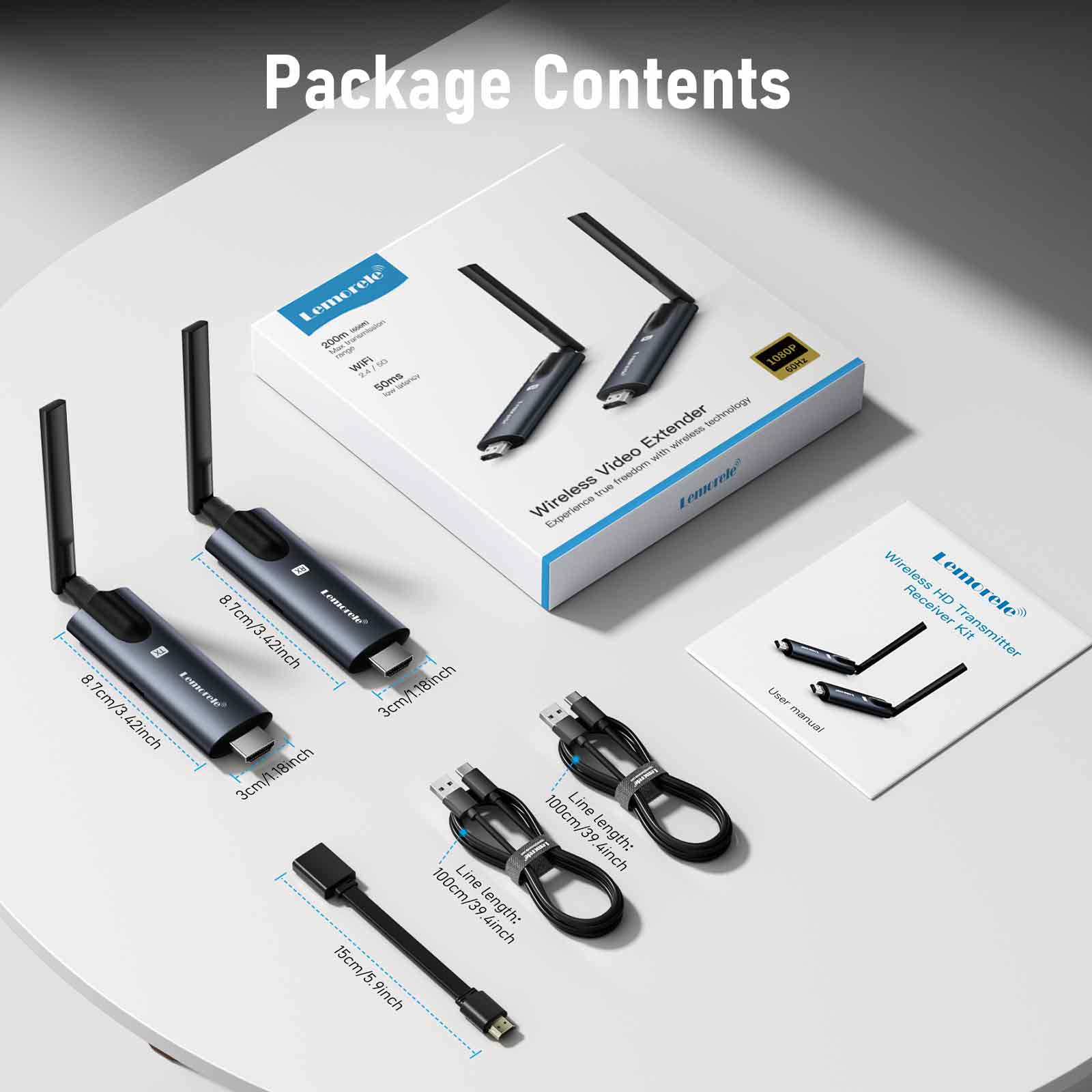
Lemorele Ultra-Long Transmission Wireless HDMI Kit – 1TX to 4RX
$96.00 USD
Shop Now
4. Choose the Right Resolution for the Distance
Higher resolution requires more bandwidth.
Some wireless HDMI kits may work very well at 1080p but become unstable at 4K, especially at longer distances. If your signal flickers, drops, or cuts to black in 4K mode, try lowering the output resolution to 1080p as a test.
This does not mean you always need to use 1080p. It simply helps you identify whether the issue is bandwidth-related. If the signal is stable at 1080p but unstable at 4K, the current distance, obstacles, or device capability may not be enough for stable 4K transmission.
For presentations, classrooms, and basic screen sharing, 1080p may be enough. For home theater or professional display use, choose a wireless HDMI extender that clearly supports your target resolution and distance.
5. Check Power Supply Stability
Some wireless HDMI kits are powered by USB. If the transmitter or receiver does not get enough power, the signal may become unstable.
This can look like a range problem, but the real cause may be weak power. Common symptoms include random disconnection, receiver restarts, signal drop after a few minutes, black screen when switching resolution, or stable performance at short distance but instability under heavier load.
When power is unstable, use the original power adapter if available and avoid relying on weak USB ports on TVs or projectors. A higher-quality USB power adapter, firmly connected power cable, and shorter, better-quality USB power cable can all help reduce dropouts.
Stable power is especially important for 4K wireless HDMI kits and long-range transmitters.
6. When Wireless HDMI Is Not the Best Choice

Wireless HDMI is convenient, but it is not ideal for every setup.
If you need maximum stability, zero dropouts, very low latency, or long-distance 4K transmission through multiple walls, a wired solution is usually more reliable.
Alternative options include:
-
Active HDMI cable
-
Optical HDMI cable
-
HDMI over Ethernet extender
-
HDMI over Cat6 extender
-
Professional AV-over-IP system
Wireless HDMI is best for setups where cable installation is difficult, temporary, or visually undesirable. When reliability matters more than convenience, a wired extender is usually the better choice.
7. Quick Troubleshooting Checklist
If your wireless HDMI range is poor, follow this order:
- Keep the transmitter and receiver in clearer line of sight.
- Reduce walls and obstacles as much as possible.
- Move away from Wi-Fi routers and mesh nodes.
- Avoid hiding the receiver completely behind the TV.
- Test at 1080p to see whether 4K bandwidth is the issue.
- Use a more stable or original power adapter.
- Reset and re-pair the transmitter and receiver.
- Check firmware, channel, and resolution settings.
- Upgrade to a long-range wireless HDMI extender if needed.
This order is useful because it starts with free adjustments before moving to hardware upgrades.
8. Conclusion
Improving wireless HDMI range is usually not about using a stronger device first. It is about improving the signal path.
Start with the basics: keep the transmitter and receiver in clearer line of sight, reduce walls and metal obstacles, move away from Wi-Fi interference, and make sure both units have stable power. If the signal becomes unstable in 4K mode, test at 1080p to see whether bandwidth is the issue.
Wireless HDMI is useful for home theaters, projectors, meeting rooms, and temporary display setups. It is also great for users who want a cleaner installation without long visible cables. But it still has physical limits. If your setup requires long-distance transmission through multiple walls or extremely high reliability, a wired HDMI extender or optical HDMI cable may be the more dependable choice.


