


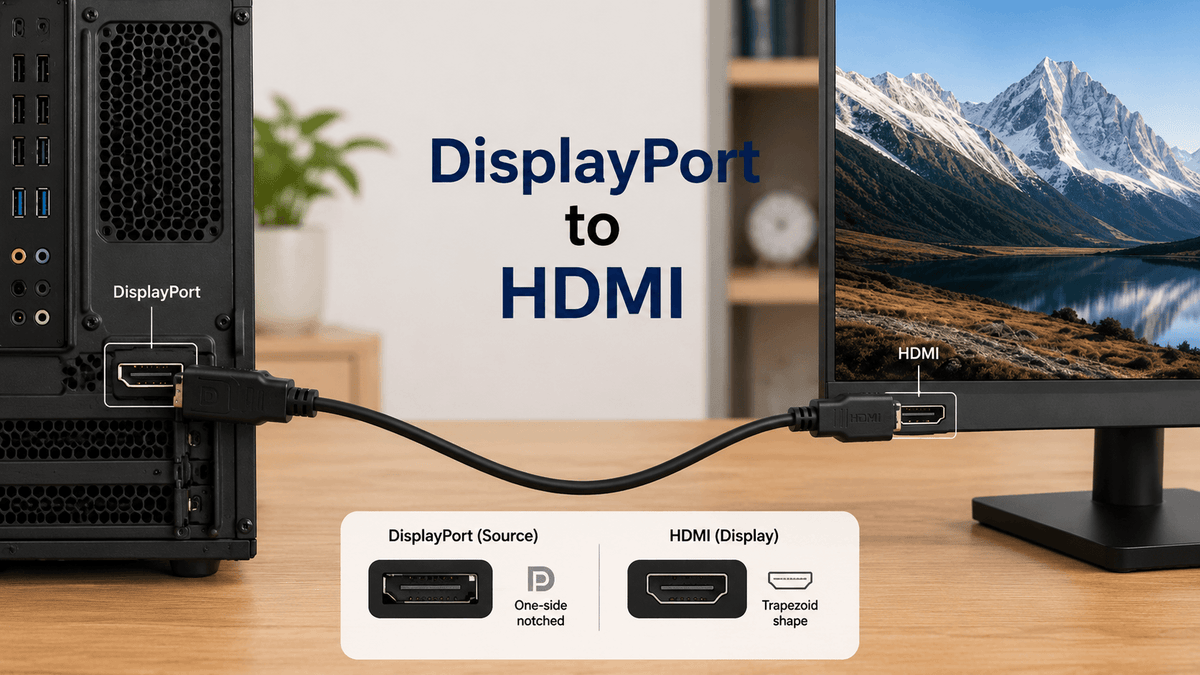
If your computer has a DisplayPort output but your monitor, TV, or projector only has HDMI, a DisplayPort cable to HDMI may look like the simplest solution. In many cases, it is. You connect the DisplayPort end to your computer and the HDMI end to your display, and the screen works.
But DisplayPort to HDMI is not always as simple as it looks. Some cables only work in one direction, some setups need an active adapter, and some users still run into a “no signal” problem even when everything appears to be connected correctly.
This guide explains how DisplayPort to HDMI works, the difference between active and passive adapters, whether it supports audio and 4K, and what to check before buying.
What Is a DisplayPort to HDMI Cable?
A DisplayPort to HDMI cable is used to connect a DisplayPort source to an HDMI display.
In simple terms, the DisplayPort end connects to your computer, graphics card, laptop, docking station, or workstation. The HDMI end connects to your monitor, TV, projector, or capture display.
This type of cable is commonly used when your computer has DisplayPort output but the screen only supports HDMI input. For example, you may use it to connect a desktop PC with DisplayPort to an HDMI monitor, or a business computer to an HDMI projector in a meeting room.
Most DisplayPort to HDMI cables are one-way.

It usually does not work in reverse. In other words, you normally cannot use the same cable to connect an HDMI laptop, game console, or TV box to a DisplayPort monitor.
| Setup | Will a DisplayPort to HDMI Cable Work? | What You Need |
| PC with DisplayPort → HDMI monitor | Usually yes | DisplayPort to HDMI cable or adapter |
| Laptop with DisplayPort → HDMI TV | Usually yes | DisplayPort to HDMI cable or adapter |
| HDMI laptop → DisplayPort monitor | Usually no | Active HDMI to DisplayPort adapter |
| Game console HDMI → DisplayPort monitor | Usually no | Active HDMI to DisplayPort converter |
| USB-C laptop → HDMI display | Not the same connection | USB-C to HDMI adapter or hub |
If your connection starts from HDMI and ends at a DisplayPort monitor, do not assume a DisplayPort to HDMI cable will work in reverse. This is one of the most common reasons people buy the wrong cable.
Passive vs Active DisplayPort to HDMI Adapters
DisplayPort to HDMI products usually fall into two categories: passive and active.
A passive adapter relies on the DisplayPort source to output an HDMI-compatible signal. This usually requires the DisplayPort port to support Dual-Mode DisplayPort, also known as DP++.

An active adapter has a built-in chip that converts the DisplayPort signal into HDMI. This usually makes it more reliable in setups where passive conversion may not work well.
| Type | How It Works | Best For |
| Passive DisplayPort to HDMI | Uses DP++ support from the source device | Basic 1080p or simple office setups |
| Active DisplayPort to HDMI | Converts the signal with a built-in chip | 4K displays, higher refresh rates, docking stations, GPUs without DP++ |
| Active HDMI to DisplayPort | Converts HDMI output to DisplayPort input | HDMI laptops, game consoles, or HDMI devices connecting to DisplayPort monitors |
For basic office use, a passive DisplayPort to HDMI cable may be enough. But if you want better compatibility, higher resolution, or fewer “no signal” problems, an active DisplayPort to HDMI adapter is usually the safer choice.
Does DisplayPort to HDMI Support Audio?
Yes. In most modern setups, DisplayPort to HDMI can carry both video and audio.
If you connect a DisplayPort output from your computer to an HDMI TV or monitor with built-in speakers, audio can usually pass through the same cable. However, you may need to manually select the HDMI display as the audio output in your operating system.
On Windows, this usually means opening sound settings and choosing the connected display as the playback device. On macOS or some docking station setups, audio behavior may depend on the adapter, dock, and display.
If video works but audio does not, the cable may not be the problem. Audio output settings are often the first thing to check.
Can DisplayPort to HDMI Support 4K?
Yes, but the actual resolution and refresh rate depend on the cable or adapter, the DisplayPort version, the HDMI version, and the display.
A basic DisplayPort to HDMI adapter may only support 1080p or 4K at 30Hz. If you want a smoother 4K experience, especially on a monitor, look for a product that clearly supports 4K at 60Hz.
For gaming or high-refresh-rate monitors, DisplayPort to HDMI conversion can be more complicated. Features such as 120Hz, 144Hz, HDR, VRR, or high color depth may not work through every adapter.
For general office use, 1080p or 4K at 30Hz may be enough. For a standard 4K monitor, 4K at 60Hz support is a better target. For gaming or high-refresh-rate setups, native DisplayPort or native HDMI is usually more reliable.
If you are buying a DisplayPort to HDMI cable for 4K, do not judge by the connector shape alone. Check the listed resolution and refresh rate carefully.
Why Is My DisplayPort to HDMI Cable Not Working?
A DisplayPort to HDMI cable may fail for several reasons. The most common issue is using the cable in the wrong direction.

If the DisplayPort end is connected to a monitor and the HDMI end is connected to a computer, it probably will not work. Most DisplayPort to HDMI cables are designed for DisplayPort output to HDMI input only.
Other common causes include:
-
The adapter is passive, but the source device does not support DP++
-
The display is set to the wrong input source
-
The HDMI cable or adapter is damaged
-
The adapter does not support the resolution or refresh rate being used
-
The graphics driver needs to be updated
-
The docking station does not support that video conversion
-
HDCP or content protection causes issues with certain media sources
A simple troubleshooting path is to first confirm the direction, then test a lower resolution such as 1080p, then try another HDMI port, cable, or active adapter.
What to Check Before Buying a DisplayPort to HDMI Cable
Before buying, check four things.
First, confirm the direction. Make sure you need DisplayPort output to HDMI input, not the reverse.
Second, check the resolution and refresh rate. If you need 4K, look for 4K at 60Hz support rather than just “4K compatible.”
Third, decide whether you need active conversion. If you are using a docking station, workstation, multi-monitor setup, or high-resolution display, an active adapter is often more reliable.
Fourth, check the cable length. Longer cables can be less stable, especially at higher resolutions. If you need a longer connection, a short adapter plus a quality HDMI cable may be more flexible than a long fixed DisplayPort to HDMI cable.
Conclusion
A DisplayPort to HDMI cable is useful when you need to connect a computer, laptop, graphics card, or docking station with DisplayPort output to an HDMI monitor, TV, or projector.
The most important thing to remember is direction. Most DisplayPort to HDMI cables work from a DisplayPort source to an HDMI display, not the other way around. If you need to connect an HDMI source to a DisplayPort monitor, you usually need an active HDMI to DisplayPort converter.
For basic office use, a simple cable may be enough. For 4K, high refresh rates, docking stations, or fewer compatibility issues, an active DisplayPort to HDMI adapter is usually the safer choice.


